
After spending the long Alaska winter of 2023-2024 creating my Nenana River map, I opened the ArcGIS Pro project in April 2024 to make some edits and to my horror, I discovered that the Map view no longer existed in the project.
After a few wishful troubleshooting sessions, I resigned myself to the loss of many hours of work on a cartographic product. Although I had all of the data in a fGDB and the Layout view was still intact, I wasn’t able to prioritize recovering/rebuilding the map until this winter. We’ve had consistent sub -40 degrees Fahrenheit most of the past few weeks, making for some great mapping weather.
Since it was difficult for me to piece together all the documentation of how to look under the hood of a Pro project, specifically for map recovery, I’m hoping my notes here will be concise enough to help others who may find themselves in this situation. I will say, though, that as a 20-40 hour/week user of Pro over the past 10 years, this is the only Pro project I’ve ever encountered issues with, which is surprising given the number of times a catastrophic power failure or unexpected network loss has occurred while working on a project. Subjectively, it felt like ArcMap corrupted maps far more often, but that may have been user error.
Still, realizing that an ounce of prevention is better than a pound of cure, I will also include some lessons learned that I’ll be applying going forward, just in case I find myself in this situation again.
Diagnosis
How did I identify the issue? When I opened the project, although the map showed up in the Catalog view, it was empty, meaning no layers were in the table of contents.
Through reading various forums, I discovered that an APRX file is really just a zipped file. Changing the extension from APRX to ZIP and extracting the zipped folder will allow you to crack the hood on a Pro project. After doing just this, I could see many folders – some for existing layouts, styles, and maps in the Pro project.
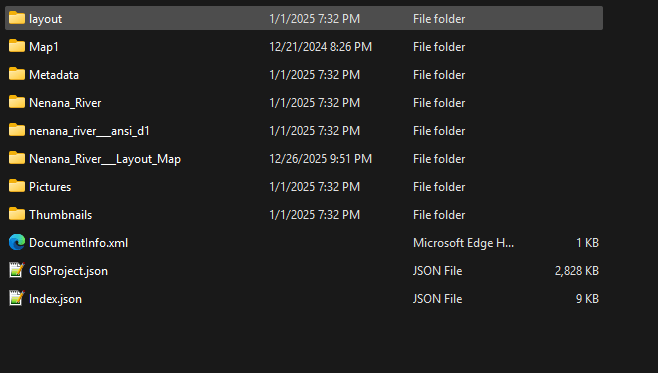
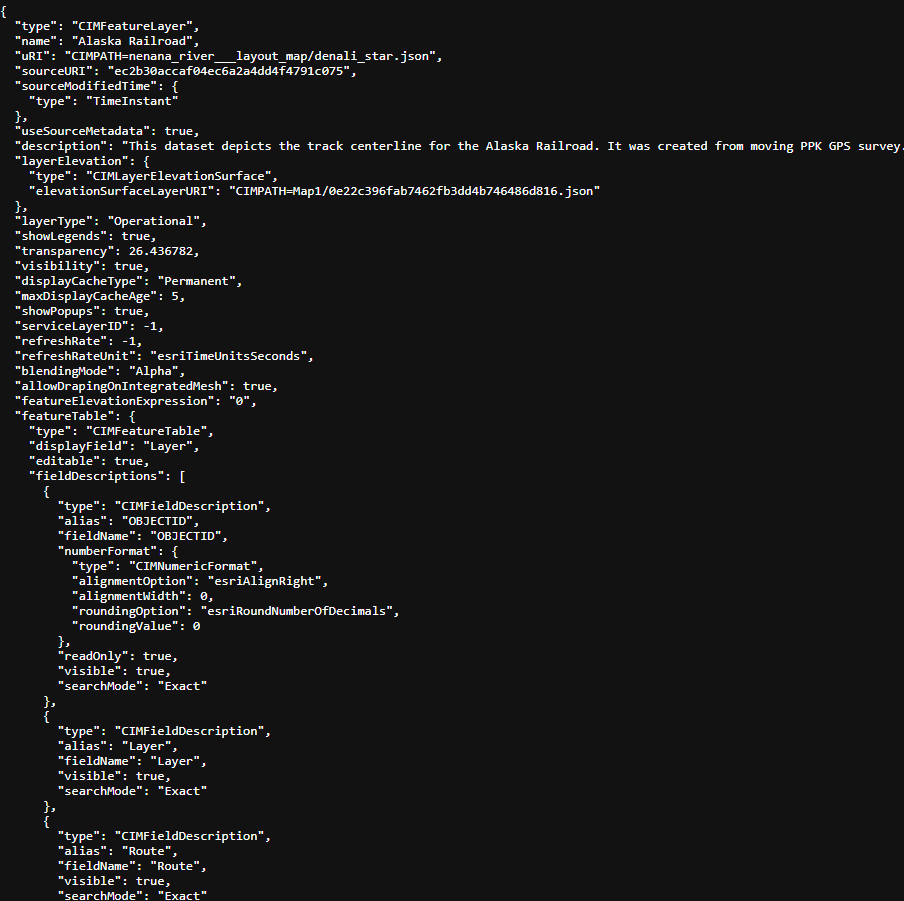
I could also see a folder with the same name as my empty map. When opening this folder, I saw many JSON files inside it. These JSON files outlined the Cartographic Information Model (CIM) for each layer. Esri provides more CIM documentation for developers than the average GIS user: https://github.com/esri/cim-spec
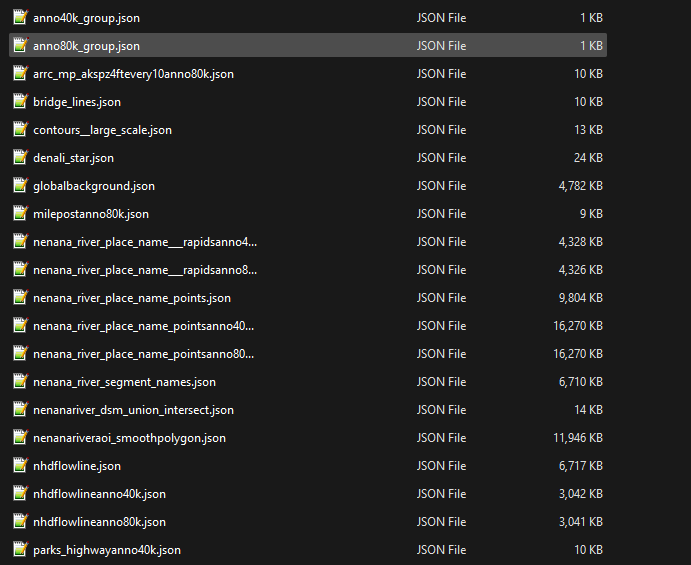
However, when comparing the empty map folder to other “healthy” APRX files that I similarly dissected, I saw that a JSON file for the map itself was missing. This, I surmised, must be why the layers in the map still appeared to be intact as JSON files but the map appeared empty inside the Pro project.
Treatment
Because I’m not a developer, I didn’t feel comfortable recreating a JSON file of the CIM Map Document. Instead, I wanted to rebuild the map from inside ArcGIS Pro, but how to do so with minimal effort by using the already existing JSON files?
As luck would have it, the same friend who gave me heavy input on the creation of the Nenana River map also happens to be a database manager, and as I was lamenting the loss of the map to him, he made a suggestion to read the JSON in an XML reader.
I used the XML reader to review each JSON and jog my memory on each layer in the map. From there, I had ChatGPT vibe code a Python script for use in an ArcGIS Pro Notebook to read and rebuild the JSON file. This worked only as long as I kept the same structure of the original Pro project file path, retaining queries and labeling, symbology, scale visibility, and so on.
Luckily, I also had almost all labels as annotation, which did not require any rebuilds. And because the layout and project was still intact, it was mostly plug and play after rebuilding the layers in a map. I incorporated a few updates that I had promised my friend and voila – good as new!
Prevention
Again, the loss of a map document inside of a project is, in my experience, an anomaly. But now that it has set me back a few years, here are some steps I’ll be taking in the future, depending on the structure of my maps.
Backups
In the future, I may capture an instance of important projects as a project package (PPKX). This is the most comprehensive and easiest button for archiving layouts, maps, layers, and data, but given the size of some projects, this is only for the most important ones.
Documentation
I work with a woman who keeps meticulous notes on everything that goes into a Pro map or AGOL Storymap, with metadata about her metadata. For the vast majority of my day job, the cartographic products can usually easily be rebuilt in a day and given that it would take about the same amount of time to document each step, the trade-off of documentation is rarely worth it. However, in this situation, where I spent a couple hundred hours on a pet project, documentation outside of ArcGIS would have given me more piece of mind. For example, how many label classes did I create and what scales did they draw at? That isn’t something I would usually put in a feature class metadata, because in this case, it was something that could have been corrupted as well. However, I could add that kind of metadata to a…
Layer files (LYRX)
I used to rely heavily on layer files with ArcMap, mainly because of the limitation of only one Layout view, so I found myself replicating similar layers across many MXD files. In my personal work, because of how I structure my projects, there is rarely a time when one layer definition is applicable to another project, thus I’ve fallen out of practice. But this practice alone would have reduced the map recovery from a day to an hour. I definitely saved all my layers to a LYRX after recovery!
History
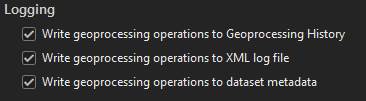
Thankfully, I had not only the JSON files to jog my memory, but also had breadcrumbs from the Geoprocessing history, since I always write and retain the history of a MXD/APRX. This was helpful because I had created some temporary layers (like a route event layer and joins) that did not perpetuate outside the map. Going forward, though, I will now also consider writing the geoprocessing history to an XML log file for certain projects, in case the Pro project itself is unrecoverable. Though, I wish the log would automatically write to a folder in the Pro project folder and be given an option for the file path of the XML, since it writes to a generic folder: %AppData%\Esri\ArcGISPro\ArcToolbox\History
Expressions
I relied on very complex Arcade expressions for the contours, which were difficult to rebuild with the JSON files. For these, I exported each and saved it with my layers, just in case I need to rebuild again.
Summary
Hopefully, if you’re not a coder and you need to rebuild a map in ArcGIS Pro, you have found your way to this blog to learn from my mistakes. Remember, save (and backup!) early and often.
 Mapplications
You must be logged in to post a comment.